




Introducing Apple Pay. Your iPhone is now your Cledara Spend card.
Apple Pay is an easy, secure and private way to pay — in-store, online and even in your favorite apps. Now available with your Cledara Spend card on your iPhone, Apple Watch, iPad and Mac.
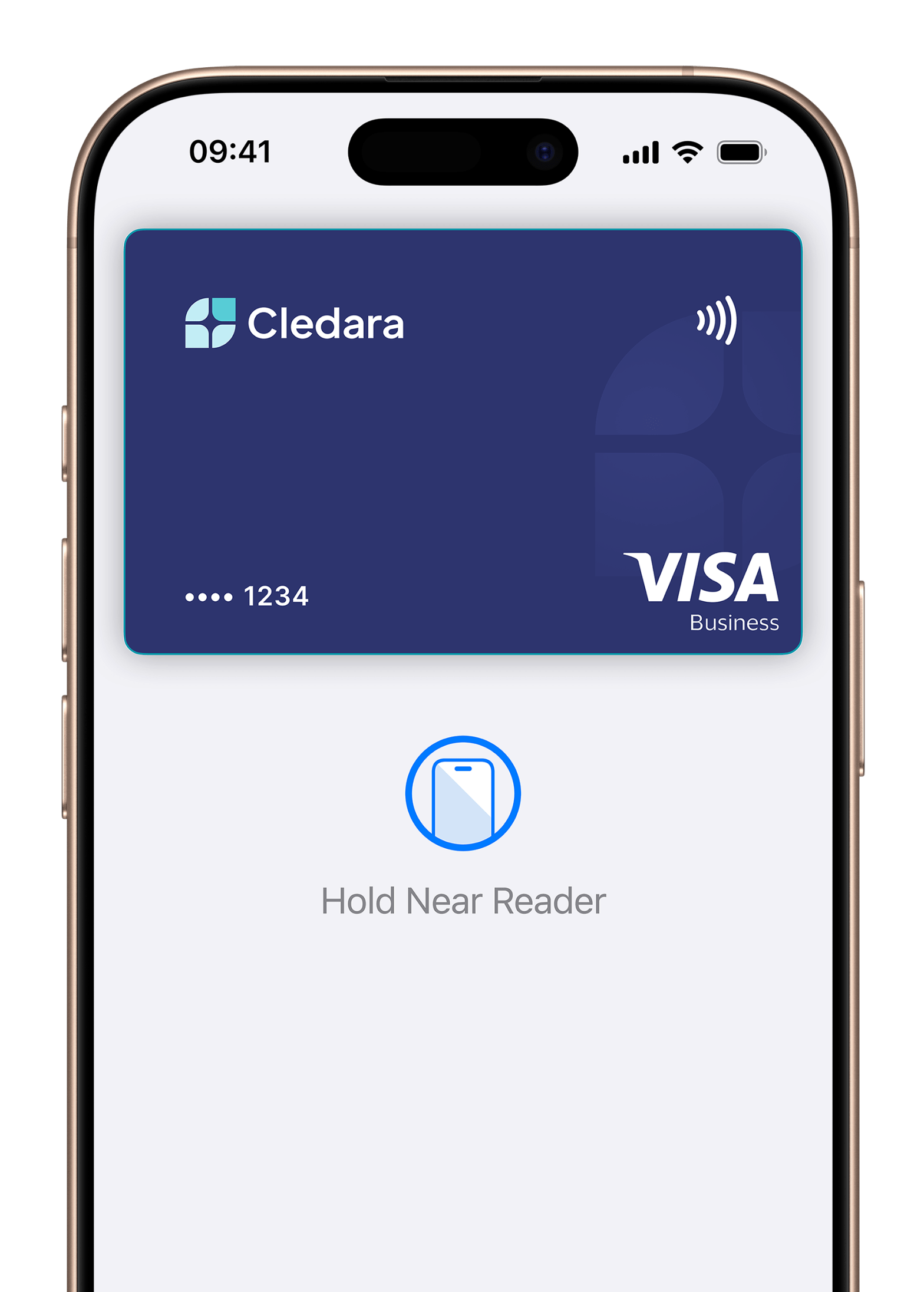
Pay easily. Pay fast.
With Apple Pay, you can pay quickly and easily with your Cledara Spend card straight from your iPhone or Apple Watch.
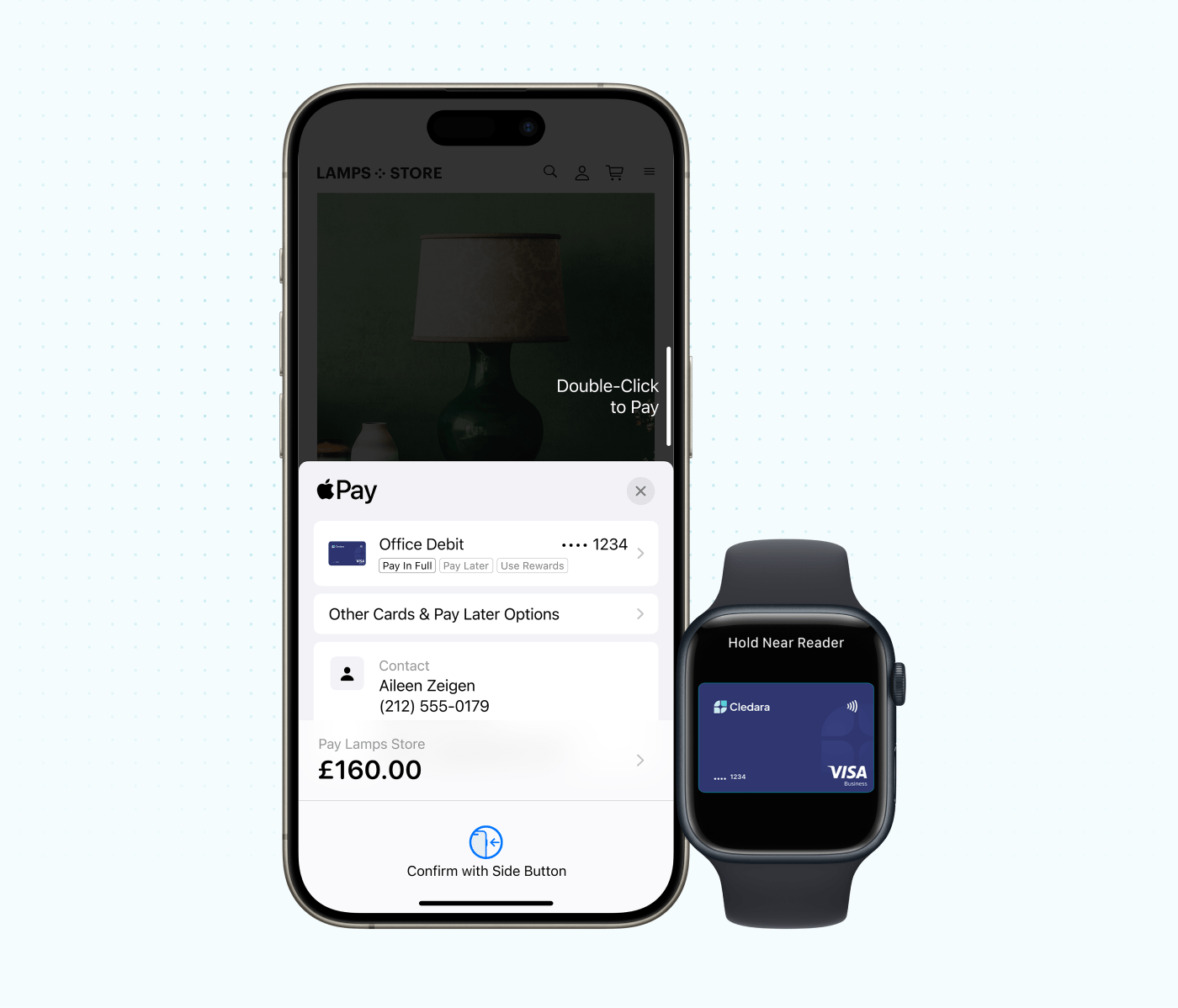
Save time, check out faster.
With Apple Pay, information like your name and address automatically populate at checkout. Now paying is faster than ever.
Extra security. Built right in.
Apple Pay uses the security features built into your Apple device — including Face ID and Touch ID — which are designed so only you can authorize payments.
Add your Cledara Spend card. Just like that.
Apple Pay is here and available on all your Apple devices. To get started, open Apple Wallet on your iPhone or Apple Watch, or select Wallet & Apple Pay in System Preferences on your iPad or Mac. Now you’re just a few taps away from using Apple Pay with your Cledara Spend card.
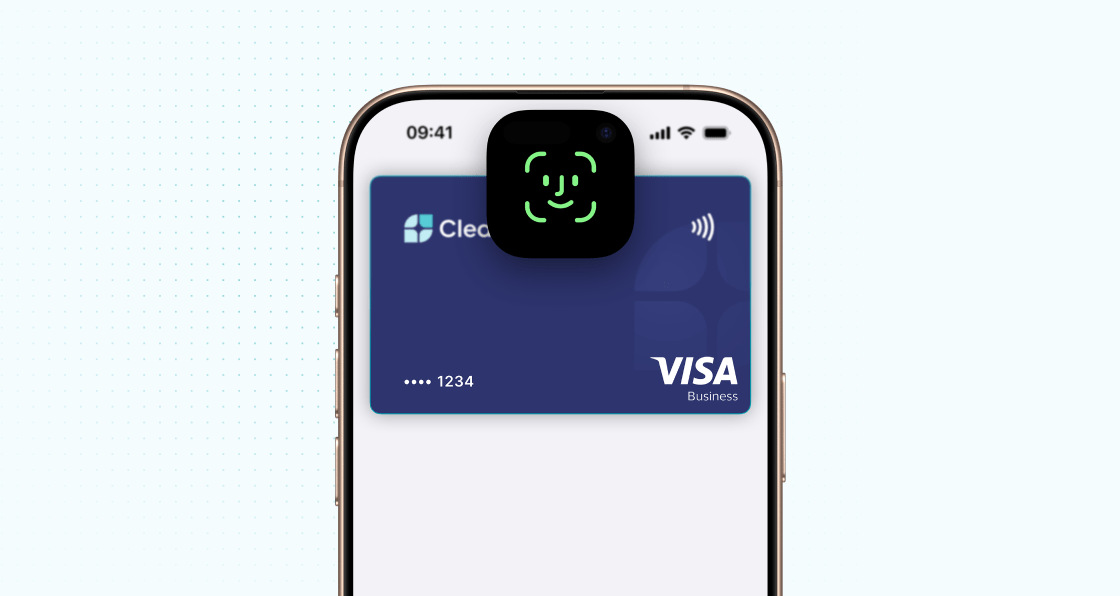
Pay with just a tap.
Double-click. Face ID. Hold iPhone near reader. Done.
.png)
Use it where you already shop.
You can now pay with your Cledara Spend card anywhere you see

or the
at checkout. It’s easy with Apple Pay.
Frequently Asked Questions
Apple Pay is a secure digital payment method that lets you use your Cledara card directly from your Apple devices (iPhone, Apple Watch, iPad, and Mac) to make payments in stores, online, and in apps.
You can use Apple Pay with your Cledara card on:
- iPhone with Face ID or Touch ID
- Apple Watch paired with iPhone
- iPad with Face ID or Touch ID
- Mac with Touch ID or paired with an Apple Watch
Adding your Cledara Spend card is simple:
Open the Wallet app and tap the + button, then choose to add the card to any other Apple devices you want to use with Apple Pay. It works on iPhone, Apple Watch, Mac, and iPad. If you upgrade to a new iPhone, you can automatically transfer your cards to the new device in one easy step.
You can use Apple Pay wherever you see the contactless symbol or Apple Pay logo, in stores, on websites, and in apps. It’s widely accepted, simple, safe, secure, and private.
No, there are no additional fees for using Apple Pay — in stores, online, or in apps. Standard card transaction fees and limits apply as per your Cledara plan.
Yes, team members with assigned Cledara cards can add their cards to Apple Pay on their own devices, subject to your company's card policies and permissions.
Apple Pay is available in UK, Spain, Austria, Belgium, Bulgaria, Croatia, Cyprus, Czechia, Denmark, Estonia, Finland, France, Germany, Greece, Hungary, Iceland, Ireland, Italy, Latvia, Lithuania, Luxembourg, Malta, Netherlands, Norway, Poland, Portugal, Romania, Slovakia, Slovenia, and Sweden.
Apple Pay works with major credit and debit cards from banks around the world, with more added all the time. You can see all the banks that support Apple Pay here. If your card does not yet support Apple Pay, contact your bank for more information.
Yes, Apple Pay is designed with security in mind:
- It uses device-specific security features like Face ID and Touch ID
- Your card number isn't stored on your device or shared with merchants
- Each transaction uses a unique dynamic security code
- Your physical card details remain private and secure
If you lose your device, you can:
- Use Find My iPhone to put your device in Lost Mode
- Remove your Cledara Spend card from Apple Pay remotely
- Contact Cledara support to secure your account
While you need an internet connection to add your card to Apple Pay initially, you don't need one to make payments in stores. However, online and in-app purchases require an internet connection.
While you need an internet connection to add your card to Apple Pay initially, you don't need one to make payments in stores. However, online and in-app purchases require an internet connection. All Apple Pay transactions will appear:
- In your Cledara dashboard alongside your other transactions
- In the Wallet app on your iPhone
- In your Cledara Spend mobile app