


Why a SaaS accounting integration is mostly about coding rather than connecting
Every finance team I talk to asks the same question about ten minutes into a demo: "Does it work with our accounting system?" It's the right question, but it's usually the wrong version of it. Almost anything can be connected to Xero or QuickBooks. The hard part of a SaaS accounting integration is what arrives on the other side: is each software payment coded to the right expense account, the right department and the right tax rate, with its invoice attached, without someone doing it by hand every month?
That's the test this guide applies to five systems: Xero, QuickBooks Online, NetSuite, DATEV and Fortnox. Three have native connections from Cledara; two work through export files and your accountant's import routine. Each section says what the route is, what to set up before you connect, and where the month-end time actually goes.
Key takeaways
- The value of a SaaS accounting integration is coding rather than connectivity: map each tool once to its account, cost centre and tax rate, and every payment for it lands the same way.
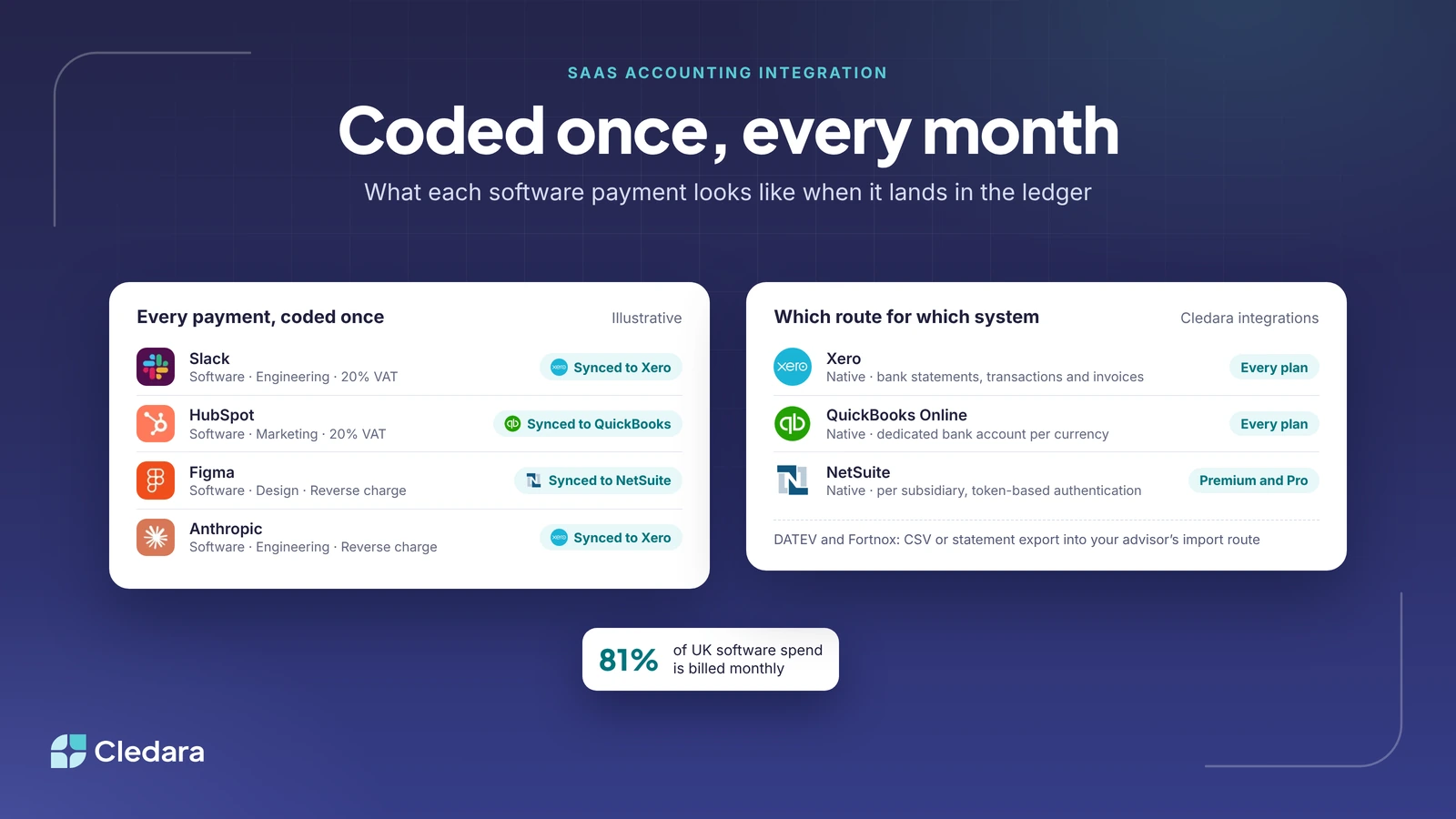
- Cledara data shows about 81% of UK software spend is billed monthly (78% in the EEA, 73% in the US), so a typical company is coding dozens of software lines every single month.
- Xero and QuickBooks Online connect on every Cledara plan; NetSuite from Premium; Tripletex natively; DATEV and Fortnox through exports and your advisor's import route.
- Bank feeds start from the day you connect, so connect early and plan for historical lines separately.
- Invoices behind vendor logins are the part no integration fixes on its own. That's a job for Cledara Agent.
What goes into the ledger for every software payment
Before the system-by-system detail, it helps to be clear about what "coded" means for a subscription. For every payment you want six things to be right: the vendor, the expense account (software, hosting, marketing tools and so on), the department or cost centre, the tax treatment (UK VAT on a US vendor's invoice is a classic trap), the period it belongs to, and the invoice document itself. Get those six right once per tool and the ledger looks after itself. Get them wrong and someone is fixing the same Slack line twelve times a year.
The volume makes this worth doing properly. Cledara data shows the median company paid for 32 software tools in the twelve months to October 2026, and about 81% of UK software spend (by value) is billed monthly rather than annually. That's a steady stream of small, similar transactions, which is exactly the kind of work a rule should do and a person shouldn't.
The approach Cledara takes is to map each tool to its expense account, department and cost centre once, so every payment for it is coded the same way, and to send each payment with its invoice matched to it. Nathan Humphreys, Finance Manager at Jiminny, put it like this:
The invoice matching is so good. I took a week off, came back and all of the payments and invoices were correctly matched. Next time I'll take two.
Xero: software subscriptions through the bank feed
Xero is the most common system among the finance teams we work with, and the integration is a native one on every plan. Once an admin connects Cledara under Settings and Integrations, Cledara syncs bank statements, transactions and invoices to Xero. If you hold both GBP and EUR balances, each one connects to its own Xero bank account and can be switched on separately. What gets pushed, and where it lands, is then set per application, which is where the one-time mapping happens.
Three things to know before you connect:
- You need Xero admin rights to set it up, and a user with the Adviser role if you want Cledara to push transactions on or before a lock date.
- The bank feed is pulled from the day you connect. Earlier transactions aren't pulled retroactively, so connect on day one and handle the backlog as a one-off import.
- Changing a mapping doesn't rewrite history. New settings apply from that point on, which is what you want, but it means getting the first mapping right saves a correction run later.
Tip: set up Xero tracking categories for departments before you map tools in Cledara, so the department field has somewhere to land.
QuickBooks Online: a dedicated bank account for software payments
QuickBooks Online is also native on every plan and follows the same shape. The one set-up decision that trips people up is the receiving account. Cledara pushes into a bank account in QuickBooks, and it only lists accounts in the same currency as your Cledara balance, so most teams create a dedicated one. In QuickBooks that means switching to Accountant view, opening the chart of accounts and adding an account of type "Cash at bank and in hand" (a short description like "Cledara GBP" helps whoever reconciles it later).
From there it's the same pattern as Xero: admin rights in QuickBooks, an Admin or Finance user in Cledara, connect, pick the account and reward category per currency, then set what to push and where for each application. If you later need to change the receiving account you toggle that currency off and on; to change company you disconnect and reconnect. Either way, previously pushed transactions stay as they were.
NetSuite: subsidiaries, tokens and the rules that stop a push
NetSuite is where software spend starts to meet real complexity: multiple subsidiaries, several currencies, and a finance team that wants departments and classes on every line. The Cledara integration is available from the Premium plan and is set up per subsidiary, so the connection should match the entity your Cledara workspace belongs to. If you run several entities, that's a conversation to have with the team at the start rather than a surprise later.
The technical set-up is heavier than Xero or QuickBooks and worth handing to your NetSuite administrator:
- Token-based authentication switched on, with the account ID, consumer key and secret, and token ID and secret to hand.
- The integration bundle installed with read and write permissions.
- Per currency, an invoice folder, a bank account under the chosen subsidiary, and a reward category.
- A check with your admin on mandatory custom fields on the records Cledara will create, so they are optional or filled by default before the first push.
Once it's live, the pattern is the same as the others: map each application once, and every payment and its invoice land in the right place. We wrote about what the NetSuite integration changed for month-end when it launched.
DATEV: the route runs through your Steuerberater
If you're in Germany, Austria or Switzerland, the question isn't "does it integrate with DATEV" so much as "which DATEV route does your tax advisor use". DATEV has several: a booking data file you import by hand (fine for small volumes), the Buchungsdatenservice for automated transfer of pre-coded bookings, the Belegbilderservice for receipt images, and the Rechnungsdatenservice, which lands invoices in DATEV Unternehmen online as booking suggestions for the advisor to review and post. Which one applies depends on your DATEV product and your agreement with the advisor.
What every route needs from you is the same set of decisions: the chart of accounts (SKR03 or SKR04), the cost centres, the tax keys, and the advisor and client numbers. One finance manager at a messaging company in Germany described exactly this requirement on a call with us: he didn't want an export, he wanted each transaction to arrive already carrying its cost centre and tax rate. That mapping is the work, and it's the same mapping whether the last step is an API or a file.
With Cledara, the practical route today is the mapping done once per tool in Cledara, then transactions and matched invoices exported as CSV or a statement for the period and taken into DATEV through your advisor's preferred service. That's a couple more steps than the native connections, and the time it saves is still in the coding and the invoice collection, which is where the hours were going in the first place.
Fortnox: SIE files and the Swedish standard
Sweden has its own answer to the import question, and it's a good one. SIE (Standard Import och Export) is a standardised file format for moving accounting data between systems; SIE4 is the type that carries verifications, which is what you need for transactions. Fortnox reads SIE4, and there's a market of small integration tools that automate SIE imports for recurring sources.
For Cledara, Fortnox works the same way as DATEV: coding done once per application, invoices matched automatically, then a CSV export or statement for the period that your accountant or an integration partner turns into the SIE4 import. A Swedish founder told us he wanted the native file formats rather than a CSV, which is exactly why the SIE4 step matters and why those integration partners exist.
Which SaaS accounting integration route for which system
| System | Route from Cledara | Plan | Set up first | Watch out for |
| Xero | Native: bank statements, transactions and invoices sync | Every plan | Tracking categories, admin rights, Adviser role for lock dates | Feed starts from connection day |
| QuickBooks Online | Native: push into a dedicated bank account per currency | Every plan | "Cash at bank and in hand" account, admin rights | Account must match the Cledara currency |
| NetSuite | Native: per subsidiary with token-based authentication | Premium and Pro | Tokens, integration bundle, invoice folder and bank account per currency | Mandatory custom fields |
| Tripletex | Native | See integrations page | Admin rights | Check settings per application |
| DATEV | Export: CSV or statement into your advisor's DATEV service | Every plan | SKR03 or SKR04, cost centres, tax keys, advisor and client numbers | Agree the route with your Steuerberater first |
| Fortnox | Export: CSV or statement, converted to SIE4 | Every plan | Account plan and cost centres in Fortnox | SIE4 conversion step |
Note: whatever the system, invoices are matched automatically in Cledara, and transactions and invoices can be exported as CSV or downloaded as a statement for any period. Details for each connection are on the integrations page.
The part no accounting integration fixes on its own
A SaaS accounting integration solves the coding problem. It doesn't solve the document problem. A surprising share of software vendors never email an invoice; it sits behind a login, and someone has to go and get it. On one recent call, a finance lead told us his CTO was logging into every provider each month to download them, which is about the most expensive way to collect a PDF that I can think of.
That's the gap Cledara Agent was built for. It signs in to the tools you connect, collects the invoices from each vendor's billing page and matches them to the payment, ready to sync to Xero, QuickBooks, NetSuite or Tripletex. It works overnight, so month-end starts with every invoice in place rather than with a list of logins. For VAT in particular that matters: a payment without an invoice is tax you can't reclaim.
Where this is heading
Not long ago, finance teams typed bank statements into the accounts by hand. Then bank feeds arrived and nobody mourned the old way. Software subscriptions are at the same point. The feed exists, the mapping can be done once, and the invoice can be collected by something that doesn't mind logging into 40 portals at 3am. What's left for people is the part that needs judgement: which tools to keep, what the department budgets should be, and whether a renewal is worth it.
So when you ask a vendor about its SaaS accounting integration, follow it with the better question: "and what does each line look like when it lands?" If the answer is "coded, with the invoice attached, the same way every month", you've found the thing that gives the hours back. Our plans and what each includes are on the pricing page, and if your system isn't in this list, the export route works the same way for it too.