


How do you track SaaS admin changes?
The simplest way to track SaaS admin changes is Cledara: it keeps one list of who has access to every tool you pay for and who owns it, sends every access request through one approval flow, and keeps a history of access requests and actions for every user and tool that you can export as PDF or CSV. For settings changes inside a single tool, add that tool's own admin audit log.
"Admin changes" covers more than an audit log entry. For finance and IT it means who has access and admin rights in each tool, how many seats you pay for, which plan and price you're on, who owns the subscription, and who has joined or left. This guide shows where the native logs live in Google Workspace, Microsoft 365, Slack, Okta and Salesforce, why they aren't enough on their own, and how to track every change in one place.
Key takeaways
- Track five kinds of change: access and admin rights, seats, plans and prices, owners, and joiners and leavers.
- Native admin audit logs live inside each tool, are kept for 90 days to two years and are sometimes limited to top plans.
- Keep one list of who has access to each tool, with a named owner, across every tool you pay for.
- Send every access request through one approval flow, so each change has a requester, an approver and a date.
- Changes Cledara Agent makes inside your tools wait for approval, unless you set a standing approval for routine work.
- Watch prices as closely as access: vendors raise renewal prices by 8 to 12% a year on average.
- Export the history before an audit, rather than relying on logs that expire.
What counts as a SaaS admin change?
A SaaS admin change is any change to who can use a tool, what they can do in it or what you pay for it. Security teams tend to watch the first two and finance the third, which is why changes slip through: each team sees only its own part. Track all five kinds in one place.
Note: 90% of software transactions on Cledara are monthly subscriptions, so seat and plan changes can land on any month's bill, not just at an annual renewal.
Where are the admin audit logs in Google Workspace, Microsoft 365, Slack and Okta?
Most large SaaS tools keep their own admin audit log, but each lives in a different place, keeps data for a different length of time and sometimes needs a higher plan. These are the logs most companies need, checked against each vendor's documentation in November 2026.
Microsoft says Audit (Standard) is on by default for organisations with the right subscription, and Entra audit entries can't be changed or deleted. Slack's audit logs are for Org Owners and members with the Audit Logs Admin role.
Tip: Okta suggests exporting logs or sending them to a SIEM if you need them for longer than 90 days, and Slack suggests exporting for longer retention. Set that up before you need last year's records for an audit.
Why native audit logs aren't enough to track SaaS admin changes
Native audit logs record what happened inside one tool, but they can't tell you what the change costs, who owns the tool or whether anyone approved it. They also stop at the tools big enough to have one.
- One log per tool. At the median of 32 paid tools per company, that's dozens of places to check, each with its own menus and permissions.
- Top plans only. Slack's audit logs come with Enterprise plans, and many smaller tools don't offer an admin log at all.
- Short memory. Okta keeps 90 days of events and Google Workspace six months, so older changes are gone unless you exported them.
- No cost or owner. A log shows that someone added ten seats. It doesn't show the new monthly cost, the renewal it affects or who signed it off.
- The long tail. About a third of software spend on Cledara goes to vendors outside the 50 biggest, and those smaller tools are often bought on a team's card, outside IT's logs.
How to track SaaS admin changes in one place, step by step
The practical way to do this across every tool is to make one list the place every change starts or lands, with a named owner and an approval for each, and keep the native logs for the detail. In Cledara, these are the steps:
- Build one list of every tool. Cledara builds it from every payment made with Cledara plus the tools you add, with owner, users, cost, renewal date and card.
- Name an owner for every subscription. The owner reviews seats, approves the renewal and is the first person asked about any change.
- Record who has access to each tool. Cledara keeps one list of who has access to each tool and when they last used it.
- Send every request through one approval flow. Access requests go through one approval flow, and requests for new tools route to the manager, finance or IT based on rules you set, such as annual cost thresholds. Both come with notifications and actions in Slack.
- Connect your HR system. Joiners and leavers in BambooHR, HiBob, Personio, Workday, Gusto and 30+ others start a workflow, so access follows the HR record.
- Keep changes inside tools behind approval. Cledara Agent sets up joiners, removes leavers and takes back unused seats. Each change waits for approval unless you set a standing approval for routine work, and it never changes account settings or adds a paid seat without approval.
- Watch plans and prices. Renewal alerts go to the owner and finance before each renewal, and the Spend Optimisation module flags price increases, unused seats and duplicate tools.
- Turn on and export the native logs. For your biggest tools, check audit logging is on and send the logs to your SIEM or storage if you need them for longer than the tool keeps them.
- Review access every quarter. Compare each tool's access list with your HR system, and remove anyone who shouldn't be there.
Worked example: an access request for HubSpot
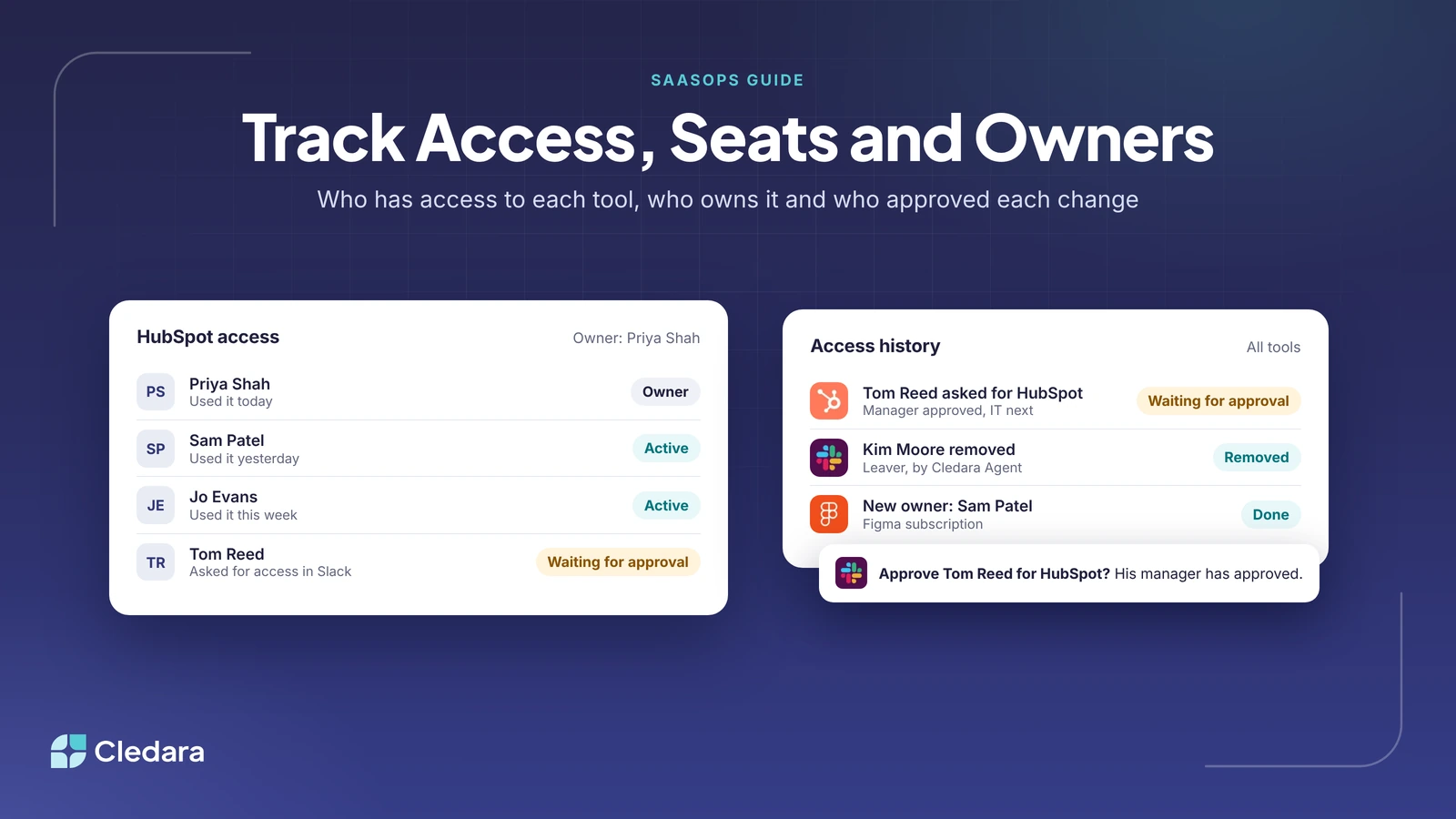
Tom Reed, a new sales manager at an illustrative 200-person company, asks for HubSpot through Cledara. The request goes to his manager and then to IT, and it shows as waiting for approval until both say yes in Slack. Once he's added, the request, the approvers and the date sit in Cledara's history for HubSpot and for Tom.
Six months later, HubSpot's owner, Priya Shah, leaves. Her leave date in the HR system lists every tool she had, Cledara Agent removes her once IT approves, and finance names a new owner for the HubSpot subscription before its renewal alert arrives.
How Cledara helps track SaaS admin changes
Cledara is software subscription management for finance teams. It gives finance and IT one place to see every tool, who owns it, who has access and what it costs, and makes sure every change goes through an approval.
- One access list. Who has access to each tool and when they last used it, across every tool you pay for, including those bought on cards.
- One approval flow. Access requests go through one approval flow, with notifications and actions in Slack.
- An access history. A history of access requests and actions for every user and tool, which you can export as PDF or CSV for audits and reviews.
- Cledara Agent, with approval. Joiners set up, leavers removed and unused seats taken back, only in tools you connect, after your approval. It's the only SaaS management agent verified by Cloudflare.
- Price and seat changes. Renewal alerts for every subscription, and Spend Optimisation flags for price increases and unused seats.
Cledara is SOC 2 Type II certified and GDPR compliant. For the wider audit picture, read our guide to staying audit-ready with your software stack, see how to automate employee offboarding and how SaaS usage tracking shows who still uses each seat. To keep renewals and their owners on track, see renewal tracking software, or compare plans and modules.